Ship a world
Export, stream and benchmark a world
Inspect an editable scene, export an environment copy, and compare loading modes.
Inspect and export
- Finish active drafts, save the scene, and open Export world.
- Choose Load whole world or Load nearby regions.
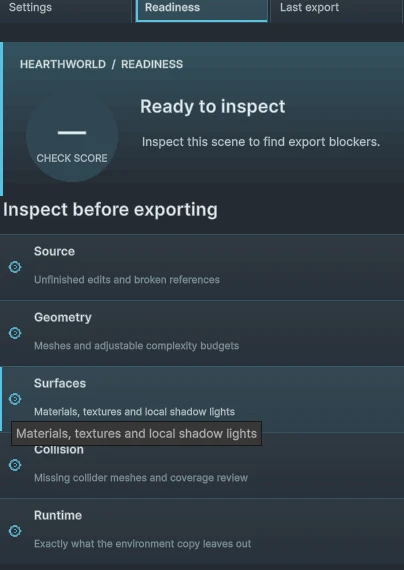
- Click Inspect scene, address blockers, and export. The result is written under
Assets/Hearthworld/User/Exports.
Export makes a separate environment copy. Authoring components, gameplay systems and most animation are outside this static export. Review the reported omissions before using the output in your game.
Configure a streamed export
Choose 128, 256 or 512 m regions. Set preload, unload margins and the cleanup policy for your traversal. LOD settings adjust existing LOD groups on the exported copy. Distant terrain can provide a coarse visual backdrop until a region loads. The editable scene itself stays fully loaded and supports sides up to 4,096 m.
Measure the same route twice
Open Benchmark in the export panel. Pick waypoints and a frame budget, then compare Stream nearby and Load all using the same route. Look at P95/P99 frame time, worst samples, memory and region readiness. Save a baseline and repeat on a revised export. Benchmark runs in Editor Play; use a standalone build and the target device for shipping budgets.